
Pop quiz! When was the last time you backed up your important data on your computer? You know, the IMPORTANT data like photographs, documents, your financial records…the stuff that would kill you if you lost it. What? Never?
 If that was your answer, you are not alone. Most of the people that I talk with NEVER back up their data. I guess that if you don’t have anything that you would hate to lose that would be ok. But, almost everyone has something on their computer that would cost a lot of time, money or heart ache to replace if it was to be lost forever.
You might say to me that you have been ok up until now with your “I don’t back up my computer” strategy, but I am here to tell you that you are living on borrowed time. Ask ANY computer technician if you are at risk and they all will tell you that it’s not IF you will wish you had a backup, it’s just a matter of WHEN. You see, all computer hard drives will eventually fail. Many computers will contract a virus that could delete or corrupt data, some computers will get stolen or lost and some will be lost to fire, flood or earthquake. (To say nothing of the times that you accidentally delete something that you wish you hadn’t!)
I’ll admit that backing up a computer is no where near as much fun as playing a rousing game of solitaire with the computer, or reading or sending email. But, it’s got to be done. The purpose of this post is to expose you to several different ways to get the job done with a minimum of aggravation and cost.
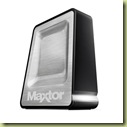 To start with, if you have a Mac Running OS 10.4 or later all you need to do is buy an external USB Hard Drive equal in size to your computer’s hard drive and plug it in. The built in “Time Machine Software” runs in the background and creates backups on the fly. Every time something on the Mac’s Hard drive changes, Time Machine stores a copy. If you choose to activate the MobileMe account for $99.00, then Apple will give you 10 gigabytes of online storage (along with some other other goodies) which will allow you to sync items like calendar, contacts email and more from your Mac to the online storage giving you some redundancy.
If you are in the Windows world, you can do much the same, just not as easily. You can purchase a USB external hard drive equal in size to your computer’s hard drive and use the included backup software that comes with most of them to schedule backups.
This will work well, but still leaves you exposed to theft of the backup drive and your computer as well as fire, flood or earthquake loss.
 The solution to this is sign up for an online backup service such as http://ww.Mozy.com or http://www.carbonite.com. Both offer free and paid services. You download a small piece of software to your computer, install it, run it and it will ask you what you want to backup and how
  often you want to backup. At that point it’s on autopilot. If you have a lot of data, you will outgrow the free allotment and will have to purchase a paid program that can be as little as $4.95 a month for MozyHome (No commercial or business use allowed) or pay $3.50 a month and .50 per Gigabyte for the MozyHomePro. Carbonite is similarly priced but does not have a free option beyond a trial period. Both services use very strong encryption to make sure that your data is safe while being backed up over the Internet as well as while they store it. Both services offer robust, yet easy to use Restoration of data should you need it.
 One more way of backing up data, that is free is Windows Live Mesh Beta (https://www.mesh.com/welcome/default.aspx). This service gives you 5 gigabytes of free storage and allows you to sync multiple computers with the storage (phones and Macs too). Of course if you don’t have multiple computers this won’t work for you! But, if you do, and if your storage needs are under 5 GB, this might be the best solution of all, as not only will it keep the two computers in sync, you can also grant access to your files to another party, like your assistant, if needs be.
As you can see, with a minimal (or no) cash outlay, and a little bit of your time, you can “buy” yourself some peace of mind and security. If you are not sure that you can handle doing this on your own, hire a tech to set it up for you. It will be money well spent.







Hi Jerry,
I’ve used Carbonite now for over a year and thank goodness! For the first time in my computer life, I had a 4 month old Dell hard drive crash. They sent me a new harddrive and Carbonite downloaded everything beautifully within 24 hours. Amazing peace of mind!!
One thing to note with these services, if you have more than one computer, the way they work is to automatically download the harddrive number/information that is internal in your computer that they use to identify which computer which is confusing and doesn’t jive with any external number you can look up, so when you have the service confirmation, make sure you write down the identifying information so you don’t replace your new hard drive with the wrong computer info…
Joan L. Kermath-MBA
Pacific Union–Christie’s Great Estates
60 Belvedere Drive
Mill Valley, CA 94941
415.380.2109 Direct
415.233.3031 Mobile
415.383.1975 Fax
PS Another benefit…I am just about to purchase a new work laptop next week as my old one is memory maxed and can’t add more…so when I get my new computer, I simply go to Carbonite and hit the download button and I’m set the next day with all my information. Not sure if there is an easier way!
Hi Jerry,
I was going to email you to ask about this very issue but I knew if I looked, you’d have a post on it already. Voila! Here it is. Thanks so much! I’m going to give Mozy a try.
Jen